Acceleration Sensor
The following example demonstrates how to model and simulate a MEMS acceleration sensor in the i-ROM MODELBUILDER environment. All model items are defined in a User model input file. In the present case, the model input file is called "Accelerometer.irommod" and can be found in the "Accelerometer_UsersManual" project folder.
The single-axis accelerometer of Figure 1 consists of a seismic mass with perforations, four stopper elements, two anchors, connecting springs and two combcells which form a differential capacitor. The upper comb is referred to as "sense+" and the lower one "sense−".

Figure 1. Schematic view of the single-axis accelerometer and its components.
For MEMS, it is recommended to set up models in micrometer units to avoid numerical problems with illconditioned matrices. A so called µMKSV-system is widely used with micrometer, kilogram, second, volt and picoampere as basis units. Related units become micronewton, megapascal, picofarad and picocoulomb. Exemplarily, the free-space permittivity changes from 8.854e 12 F/m to 8.854e-6 pF/µm and gravitation of earth from 9.81 m/s2 to 9.81e6 µm/s2.
Several dimensions of the given example are highly enlarged for better visualization on the computer screen and in the figures of this documentation.
Usually the spring width and electrode gaps are about two micrometers and etch tolerances are a few nanometers. Enlarged gaps are helpful to plot and to animate the functional behavior with larger amplitudes for demonstration.
One consequence is that the drive voltages, eigenfrequencies and all loads (forces, acceleration, angular rates) assume values that are much higher than reality.
In the following sections, the modeling and simulation process of the accelerometer will be discussed in detail. It starts with the model generation process (pre-process), then follow commands and features to perform simulation runs (solution-process). Finally, typical steps for results evaluation and graphical visualization will be shown on several examples (post-process).
Creating seismic masses and anchors⚓︎
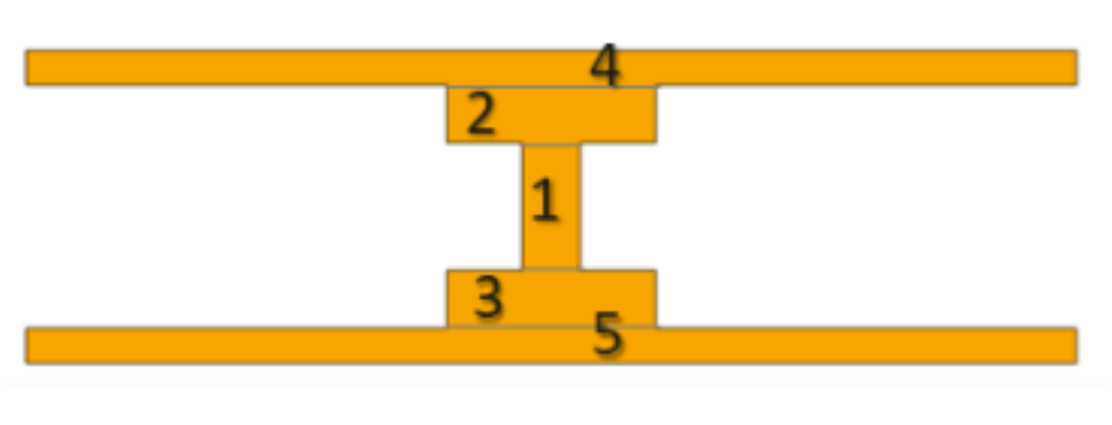
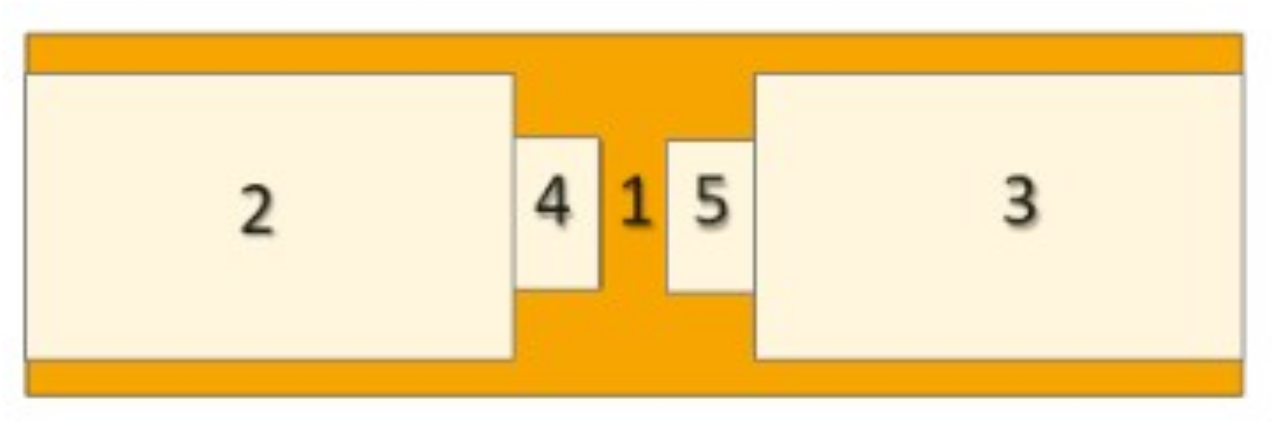
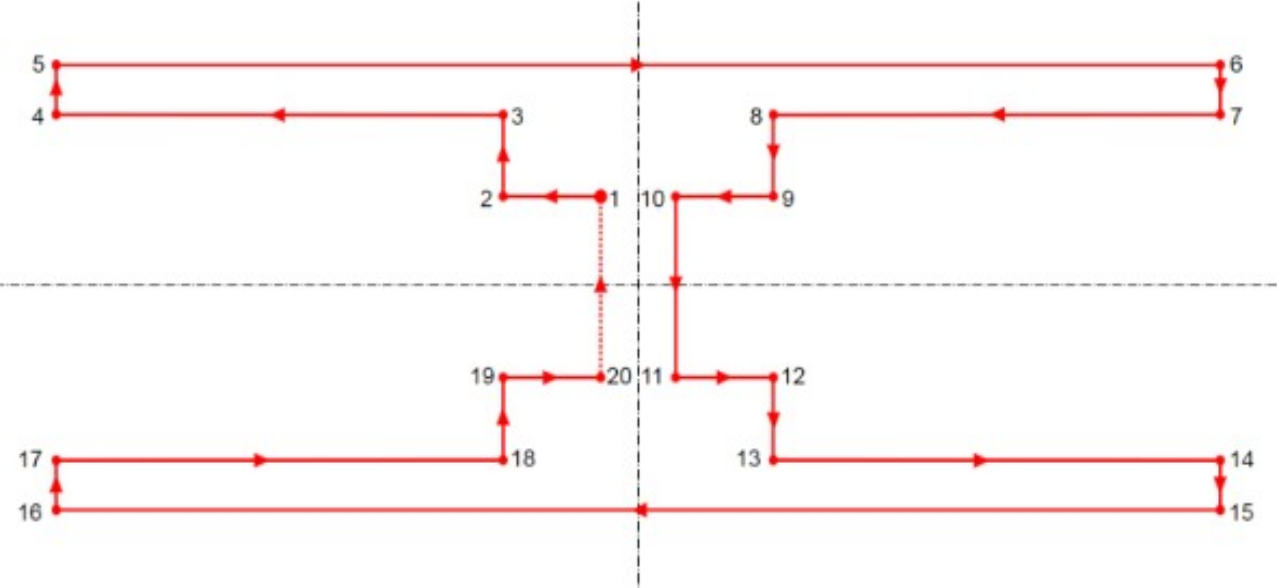
In the MODELBUILDER, seismic masses can be defined quickly by parametric 2D-primitives and Boolean operations. The mass body of Figure 1 can either be defined by rectangles which are combined by Boolean "add" (a) or "subtract" (b) operations or simply by a polygon (c) as shown in Figure 2. The resulting entity is a single mass body containing no internal lines, except different material properties have been defined for involved primitives. The thickness and vertical location of the functional layer with its mass, springs and anchors is defined by a LAYR command.

Figure 2. Defining the seismic mass of the accelerometer by a single polygon.
Appropriate MODELBUILDER commands for all three cases are listed in Table 1. The geometrical dimensions are defined by parameters (PARA command) which can be modified in the Design Variables window of the Graphical User Interface.
Commands to define masses and anchors are RECT, CIRC, TRIA and POLY. Each seismic mass is related to a body reference number of type integer. In the given example, just one mass is necessary (body reference number is 1). Primitives of the same mass body may have different material reference numbers which are linked to material properties defined by the MATP command.
A variety of material properties are often used to assign efficient density values to different regions of seismic masses if resource consuming perforations are neglected. Otherwise, a reasonable number of perforations can be added by the PERF command.
| Commands | Resulting Shape |
|
|
|
|
|
|
Table 1. Creating a seismic mass by primitives and Boolean operations.
The body reference number must be set to zero for all anchors. The anchor extension to the substrate surface is defined by the "Anchor Extrude Length" parameter in the Solid Model Settings window of the GUI.
Graphical manipulation of the model⚓︎
The "3D View" panel shown in Figure 3 allows to realign the model into the six orthogonal views, to select model items, to attach coordinate selection markers and to start and stop animation sequences after simulation runs. The slower and faster icons are used to change the speed of animations.

Figure 3. 3D View panel to verify model items in the pre- and post-process.
Alternatively, the model orientation can quickly be changed by mouse buttons:
- Press "Alt + left mouse button" to move the structure in x- or y-directions.
- Press "Alt + right mouse button" to tilt the structure around x- and y-axes.
- Scroll the mouse wheel to zoom in or out.
The User can either tilt the model around its Center Point (CP-mode) or around a User-defined Pivot Point (PP-mode) located on the model.
- To activate the "CP-mode", move the mouse pointer into the open space. Press "Alt + right mouse button" and tilt the model around x- or y-axes.
- For the "PP-mode", move the mouse pointer to the pivot point of interest. Note, the pivot point must be on the model and may not be in the open space. Press "Alt + right mouse button" and tilt the model around x- or y-axes.
A rectangular section of the model can be selected by the "Box zoom" mode. Press the right mouse button and move the mouse from the upper left to the lower right position in the model window.
The "Fit to View" button shows the model at full size on the display screen.
Creating suspension springs⚓︎
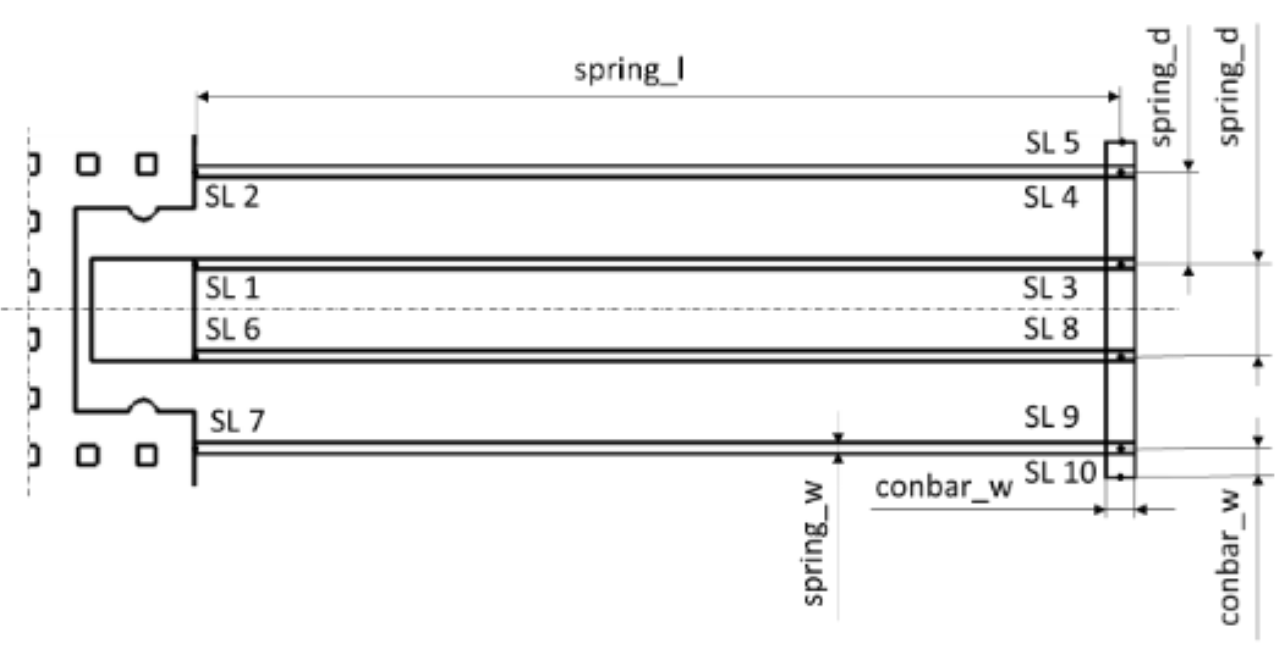
Timoshenko beam elements are implemented for modeling of suspension springs. Beams either connect seismic masses to anchors or seismic masses to other masses. A straight spring is described by two and a circular spring by three connecting points (SLOC Command) which are linked by a line element (SPRI Command) to form a spring. Connecting points are either located at the interface to masses (the connecting points #2 and #7), at the interface to anchors (the connecting points #1 and #6) or they are in the open space. The latter case happens if the connecting point links different springs together (points #3, #4, #8 and #9) or defines the open end of a beam (points #5 and #10 in Table 2 ). The outer corner fillets at connecting points #1 and #6 are automatically disabled because those springs are aligned at the upper and lower edge of the anchor.
Looping and condition commands as *FOR or *IF allow for simple and efficient spring designs in larger models. The spring width can be assigned to the beginning and to the end of each line and allows for uniform and tapered beams. Beams can also be subdivided into several lines to model a sudden or a smooth transition of the spring width. The thickness is taken from the LAYR command.
|
|
|
|
Table 2. Defining springs by connecting points and linking spring elements.
Creating combcells and plate-like capacitors⚓︎
Combcells and plate-like capacitors are necessary for capacitive sensing and electrostatic actuation of MEMS. The COMB command supports different types of comb capacitors and links the moving part of the comb to an outer face of the seismic mass. Each comb capacitor is associated to a custom name that is later used to map the comb capacitances to the voltage ports (COND command).
Only one command is necessary for each comb. Combs are parametric library elements with a specific layout, an arbitrary number of fingers and a series of dimensional parameters. Both, the x-y-location and the orientation angle of the comb are defined regarding a connecting point which is placed at the center of the interface to the seismic mass (see COMB command). Likewise, the thickness is taken from the LAYR command. Fixed conductors are automatically anchored with the specified anchor distance (see Solid Model Settings window) to the substrate surface.
Exemplarily, three different types of capacitors have been defined in Figure 4. A desired type can be activated by the "build_capa" parameter in the Design Variables window of the Graphical User Interface as shown later.
Plate-like capacitors are defined by PCAP commands. Plate-like capacitors are assembled from primitives and Boolean operations in the same way as seismic masses. The overlapping area is automatically recognized for capacitance and force calculations. Details are discussed in the Micro mirror actuator section.
% Define capacitors, comb cells with area variation
*IF,build_capa,eq,0
    COMB,sense+,area,1,1,, 90,comb_nf,1,comb_fw,comb_fl,comb_bw,comb_tr,comb_eg,,,0,+body_y3/2;
    COMB,sense-,area,1,1,,270,comb_nf,1,comb_fw,comb_fl,comb_bw,comb_tr,comb_eg,,,0,-body_y3/2;
*ENDIF

% Define capacitors, comb cells with gap variation
*IF,build_capa,eq,1
    COMB,sense+,dif2,1,1,,180,1,-1,pcomb_w,pcomb_l,pcomb_bw,pcomb_tr,pcomb_eg,,30,0,+body_y3/2-pcomb_w/2
    COMB,sense-,dif2,1,1,,  0,1,-1,pcomb_w,pcomb_l,pcomb_bw,pcomb_tr,pcomb_eg,,30,0,-body_y3/2+pcomb_w/2
*ENDIF

% Define capacitors, bottom plate capacitors
*IF,build_capa,eq,2
    PCAP,,sense+,rect,add,1,1,2,-plate_x/2,+body_y3/2-plate_y/2,plate_x,+plate_y;
    PCAP,,sense-,rect,add,1,2,2,-plate_x/2,-body_y3/2+plate_y/2,plate_x,-plate_y;
*ENDIF

Figure 4. Defining comb- and plate-like capacitors for the accelerometer example.
Creating perforations and stopper elements⚓︎
The PERF command is a powerful routine to create perforation patterns in seismic masses. It supports circular and rectangular perforations arranged either in Cartesian or cylinder coordinates. Perforations which are partially or completely outside of mass bodies are automatically ignored. Alternatively, Boolean operations for intersections among different perforations or intersections with outer lines may be activated by the "c_flag" of the PERF command. Results for both values of the "c_flag" are illustrated with enlarged perforations in Figure 5.
The STOP command defines contact elements to limit the travel range of seismic masses. The command creates stopper of circular or rectangular shape on masses with custom defined contact stiffness and damping values. Both parameters tune the penetration depth and bouncing effect at the mechanical contact. In this example, four circular stopper elements have been attached to the seismic mass in order to limit the travel range in uy-direction. In Figure 5 the stoppers are located above and below the anchors.
Out-of-plane motion components at certain points can be limited by the ZLIM command. It creates contact elements above or below seismic masses.

Figure 5. Deactivated and activated intersections of perforations at outer edges (c-flag).
Creating corner fillets at clamps and spring connections⚓︎
Sharp corners at springs cause stress concentrations known as notch effect. For reliable designs, corners at the clamp and between springs should be replaced by fillets with a radius of a few micrometers. Two different values for the fillet radiuses can be set in the Process Data Settings window of the GUI. One radius is used for the spring connections to masses and anchors referred to as "Fillet Radius Spring-Mass-Junction" and the other radius for the connections of springs to other springs referred to as "Fillet Radius Spring-Spring-Junction".
It is also possible to assign a specific fillet radius to individual springs or to remove the fillet (assign zero values) at some corners with the help of the SPRI command. Fillets are automatically removed at anchor or mass connections if there is not enough room for corner fillets (see Figure 6).
Fillets create tangential lines to the adjacent model items. At the clamp to masses and anchors appear new volumes with sharp angles which are difficult to mesh in finite-element tools. To avoid a poor finite-element mesh quality, one can assign a tilt angle in the Solid Model Settings window. It is essential for applications in which a model export to ANSYS® or COMSOL® is planned.

Figure 6. Top view before and after adding fillets to clamps and spring connections.
Define mask undercut and etch sidewall offset⚓︎
In the MODELBUILDER, all dimensions of the microsystems are related to the mask layout. During manufacturing, masks are underetched, and the silicon structure shrinks according to the "Mask Undercut" value specified in the Process Data Settings window of the Graphical User Interface. All outer dimensions of the functional layer (masses, anchors, springs, combs, perforations and stopper) are affected by the value. For instance, the width of springs gets smaller and the gaps of combs or perforations get larger by twice the amount of the specified value.
In addition, the vertical etch profiles are not ideal after manufacturing. The bottom face is usually not congruent to the top face of the functional layer. In contrast to the mask undercut, which always makes silicon structures thinner, the etch side-wall slope can point inwards or outwards. Furthermore, the sidewall slope deviation strongly depends on the orientation angle of the mask edges on the wafer surface. Therefore, different etch sidewall values can be assigned in the Process Data Settings window for vertical faces which are pointing "north", "south", "east" and "west". Further values could be defined for directions in between (e.g. "north-east"). The etch sidewall offset of all other faces are interpolated.
The assigned etch sidewall values are lateral dimensions and specify the shift of the bottom edge compared to the same edge at the top face. Zero means it is an ideal vertical etch profile. Positive offset values make the silicon thinner as known from mask undercut and negative values make the silicon at the bottom edge larger compared to the edge at the top.
The mask offsets will be explained on the accelerometer example. The width of all horizontal beams is set to 3 µm. Exemplarily, the mask undercut is set to +0.2 µm and the etch sidewall offsets "north" and "south" are -0.5 µm. Horizontal beams get a trapezoidal cross-section with 2.6 µm beam width at the top and 3.6 µm beam width at the bottom. If the etch sidewall offset of all faces pointing "south" is changed from -0.5 µm to +0.5 µm, the cross-section becomes a parallelogram with 2.6 µm beam width at the top and at the bottom. The bottom face is moved 0.5 µm north compared to the top face. The asymmetric cross-section creates elliptical fillets at the bottom face corners. Results for both cases are shown in Figure 7. Cross-section properties can be visualized by the BSEC command.
General etch sidewall offset data from the Process Data Settings window can also be redefined by other values for individual springs (see SPRI command). Analyzing the influence of etch tolerances is very important to evaluate the performance of microsystems. Values for etch tolerances in Figure 7 have been highly enlarged for better visualization.

Figure 7. Top view on springs and cross-section properties at different sidewall etch offsets.
Define material properties⚓︎
The MODELBUILDER supports isotropic and orthotropic elastic material properties for MEMS. The latter one should be used for single crystalline silicon. Material properties are defined by the MATP command and orientation dependent values can be visualized by the MPLO command. Since masses and anchors are considered rigid, the elastic material properties are solely applied for Timoshenko beam elements.
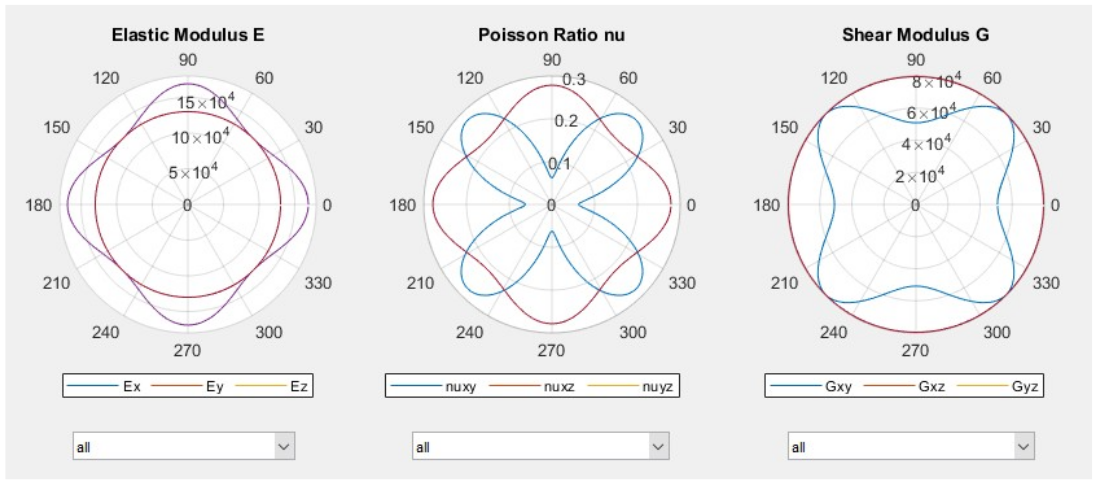
Orthotropic material properties are either defined in the Global Coordinate System (GCS) or in a rotated Material Coordinate System (MCS) with specified "orientation angle". Exemplarily, the acceleration sensor is etched from a (100)-wafer. The model coordinate system with mask edges is aligned parallel to the wafer flat which points in [110]-direction according to the Miller schema. Hence, the material coordinate system is rotated 45° regarding the global coordinate system. Material properties defined in MCS- or GCS-coordinates of Table 3 are identical.
|
|
|
|
|
|
Table 3. Orthotropic material properties of single crystalline silicon.
Define master nodes⚓︎
Master nodes (MN) are characteristic points on or in seismic masses where nodal loads can be applied, and displacement results can be observed after simulation runs. Master nodes can be used to extract stiffness data. For instance, the ratio of applied test loads and monitored displacements are the stiffness of a mechanical structure with regard to the master node location.
Master nodes are defined by the MAST command. Beside the master nodes, the rigid body’s center of gravity (RB) and the spring connecting points (SLOC) are further points which allow for mechanical loads and displacement constraints. The position and reference number of master nodes and spring connecting points can be visualized by markers and labels as shown in Figure 8. The annotation symbols are activated or deactivated in the "Model Tree" window.

Figure 8. Top view before and after adding fillets to clamps and spring connections.
Creating different model variants⚓︎
User defined parameters of the model input file (see PARA command) are listed in the Design Variables window of the Graphical User Interface and can be directly modified there. Parameters can be assigned to geometrical dimensions or physical properties for structural optimization and case studies. After changing design variables, a new 3D-model must be generated by clicking on the "Build Solids" icon of the GUI. Figure 9 shows four examples of model variants:
- a) The extension bar is removed by setting the "build_ebar" flag to zero.
- b) The electrode gap of combs is changed from 3 µm to 5 µm by "comb_eg".
- c) The number of fingers is reduced from 33 to 25 by the "comb_nf" parameter.
- d) The capacitance type is changed by modifying the "build_capa" flag from zero to one or two.
Now, a 3D-model has been generated and is ready to use. The preprocess is finished and allows for numerical simulations and results evaluation.

Figure 9. Creating design variants by changing design variables in the GUI.
Settings for the reduced-order-models (ROM)⚓︎
Prior to running simulations, a few parameters must be assigned in the ROM Settings window and the Simulation Settings window of the GUI. The parameters are:
- ROM mesh sizing: In the MODELBUILDER, connecting springs are represented by a series of Timoshenko beam elements. The mesh sizing can be controlled by two parameters which are "ROM Mesh" and "Element Size for Spring ROM". The first parameter specifies the maximum number of beam elements allowed for springs and the second specifies the default length of beam elements for all springs of the model. The number of elements can be modified for individual springs by the SPRI command.
- ROM reduction stage: The parameter "Reduction Stage" describes what motion degrees of freedom (DOF) are considered for simulation runs. Motion DOF are the rigid body center points (RB), spring connecting points (SL) and internal nodes (IN) between Timoshenko beam elements. Considering all motion DOF (level 0) is most time consuming but provides the highest accuracy. In contrast, considering only rigid body motion DOF (level 1) is the fastest approach but less accurate. Level 2 is recommended for most applications. Level 2 takes RB and SL motion DOF into account. All other DOF are eliminated by a Guyan condensation method. The default reduction level can be changed prior to simulations by the REDS command.
- Modal superposition: A modal superposition solver (MSUP) can by applied for all three reduction levels. If MSUP is activated, the mechanical system is represented by a superposition of the lowest eigenvectors. The default number of modes is 20 but can be redefined in the ROM Settings window.
Modal superposition is recommended for most applications. It is fast and numerically stable. Especially for transient simulations, the MSUP solver avoids tiny time-steps since high frequency motion components are eliminated automatically. The modal superposition solver can be activated or deactivated prior to simulations by the MSUP command. - Vlasov-torsion: Saint-Venant torsion theory is typically implemented for Euler-Bernoulli or Timoshenko beam elements and assumes that warping deformations (axial displacements) caused by torsion are not restrained. The assumption is only valid for torsion beams with uniform cross-sections and open ends referred to as "free warping". Restrained warping occurs at clamps, at beam connections and at jumps of the cross-sectional areas. The Vlasov-theory considers "restrained warping" and the related stiffness change of torsion beams. The effect is relevant for short beams and affects the tilt mode and the out-of-plane mode of the accelerometer shown in Figure 10.
After the reduced-order-model settings have been assigned it is necessary to create a numerical ROM-model from the solid model representation. The system information for all three reduction levels and for activated and deactivated modal superposition are created by clicking on the "Build ROM" icon of the GUI. The system matrices are generated, and the model is ready for simulations.
Modal analysis and electrostatic softening effects⚓︎
The "Modal analysis" calculates eigenfrequencies (natural frequencies) and eigenvectors of the electro-mechanical system. A modal analysis is performed after executing SOLV, modal; in the GUI command line window. The default number of modes is set to six but can be changed by the MOPT command prior to simulations.
For all types of analyses, load settings and solver commands can either be entered or copied into the command line or retrieved from a text file in the Assign Loads and Constraints window (go to "summary" and "Import from file"). Furthermore, all settings can be assigned in the Graphical User Interface.
After simulations are finished, a post-processing panel "Modal" appears on the screen. In the GUI, modes can be selected and scaled in their amplitude and contour plots can be activated or deactivated. The "3D View" panel allows to realign the model, to attach coordinate selection markers and to "start" and "stop" animation sequences of modes. Figure 10 shows some eigenmodes of the acceleration sensor.
Numerical values for eigenvectors at rigid body center points (RB), master nodes (MN) and spring location points (SL) can be listed by SNOD commands or by selecting solution items in the "Solution Item Selection" window of the GUI.
In a modal analysis, zero displacement constrains can be applied by the LOAD command to fix motion DOF of rigid bodies and spring connecting points. Displacements of anchors and fixed comb or parallel plate conductors are automatically set to zero. Inertial properties of masses, spring properties and modal analysis results are written to files in the working directory.
The shift of eigenfrequencies due to deflection dependent electrostatic forces is also considered in a modal analysis. Deflection dependent electrostatic forces appear in models with combcells and plate-like capacitors which change the electrode gap during operation. The frequency shift referred to as "Electrostatic softening" is widely used to modify eigenfrequencies during operation for resonant vibration sensors or angular rate sensors referred to as "Mode-matching".
In the given example, plate-like comb capacitors can be activated by setting the design variable "build_capa" to 1 or opening the project "Accelerometer_gap.iromproj" from the same folder.

Figure 10. Modal analysis results of the acceleration sensor.
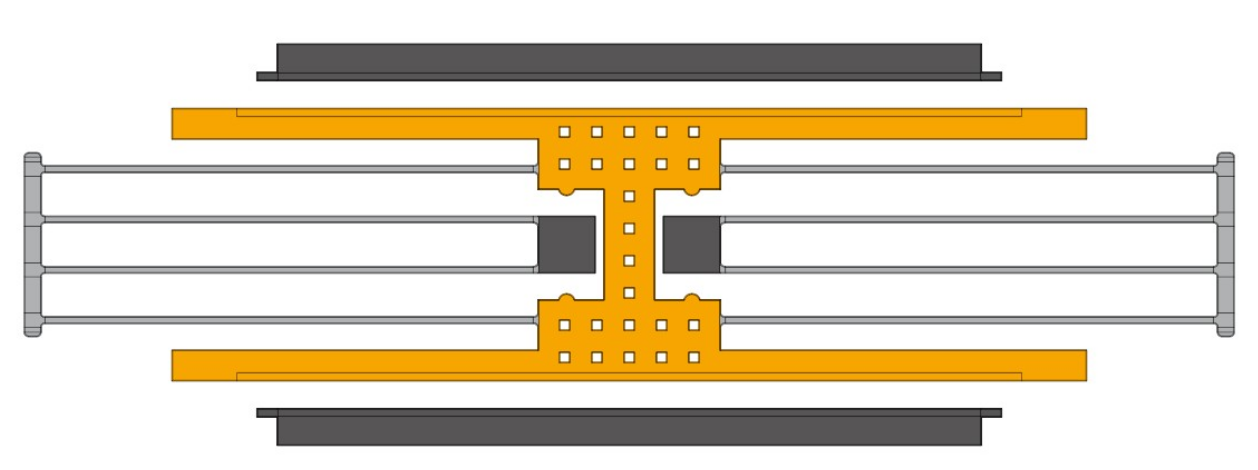
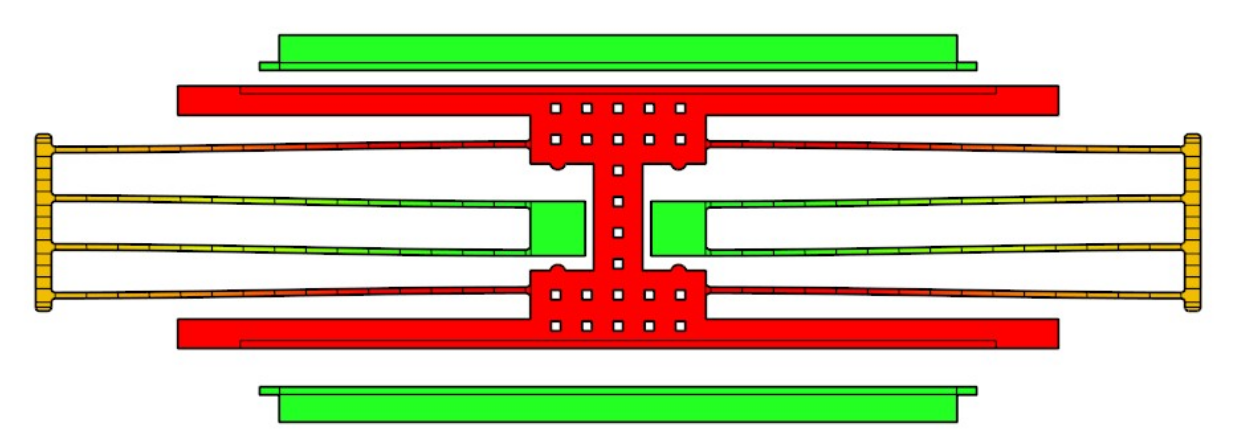
Table 4 shows the command sequence and modal analysis results of the accelerometer with and without electrostatic softening effects. The applied DC-voltage on the upper and lower combcell must be smaller than the pull-in voltage. Otherwise, the system gets instable and imaginary eigenvalues appear whereby the character "i" is written right behind the frequency value in the "Mode Selection" window.
In the given example, in-plane modes in uy-direction get a lower eigenfrequency and modes with out-of-plane components get a slightly higher eigenfrequency. The modal analysis evaluates second derivatives of capacitances at displaced positions referred to as operating point. In the given example, the tuning voltage is much higher than usual because of the highly enlarged electrode gaps.
|
|||
|
|
||
|
|
|
|
Table 4. Frequency tuning of eigenmodes due to DC-voltages on combs.
Static simulations and DC-sweep⚓︎
"Static simulations" calculate characteristic properties of the system such as stiffnesses in certain directions or capacitances and their derivatives for a single load case. In practice, DC-sweep operations are preferred because sweep operations determine the static response of the system to a varying input parameter in a specified range and not just for a single load step. Possible sweep parameters are mechanical loads (forces, moments, transversal or angular acceleration) and degree-of-freedom constraints (displacements, rotations and voltages).
A DC-sweep is important to analyze nonlinear effects related to electrostatic quantities or electrostatic interactions with the mechanical domain. Examples are capacitance-stroke-functions and voltage-displacement-functions.
Constant mechanical nodal loads and DOF constraints are defined by the LOAD command, inertial loads by the ACEL command and DC-voltage sources by VSCR command. Varying loads and constraints are specified by the DCSW command. Constant and varying loads can be superimposed. All load and solution commands can likewise be defined in the graphical user interface. Furthermore, it is possible to change model settings by REDS and MSUP commands.
The solution routine with all defined loads and DOF constraints is started with SOLV, stat;. A post-processing panel "Static" appears automatically on the screen in the same way as discussed in the "Modal analysis" section. Several examples with commands and results are shown in Table 5.
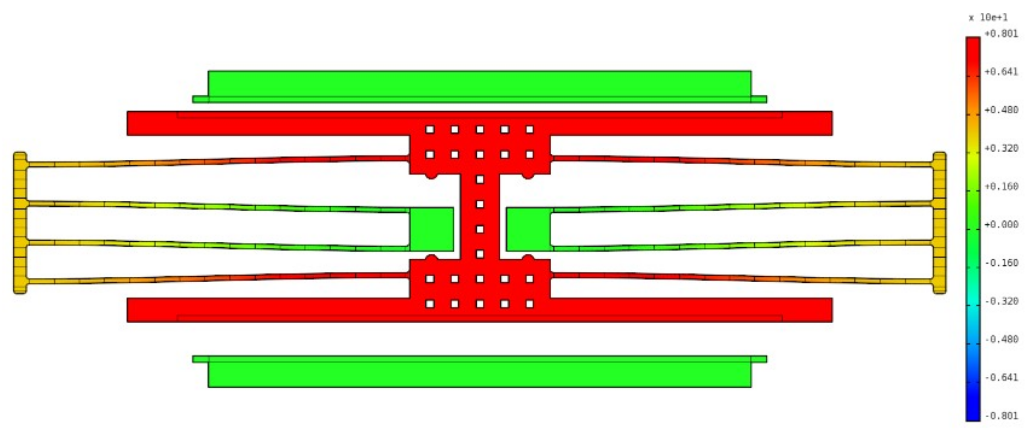
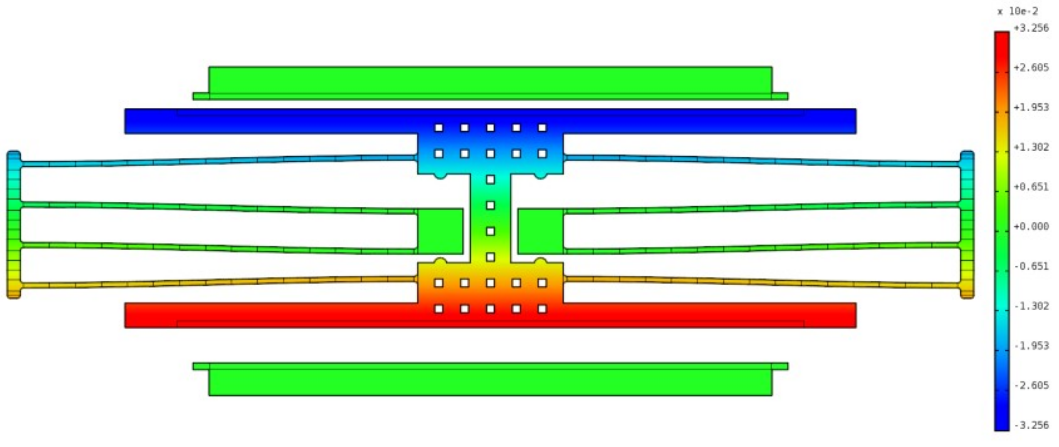
The upper line of Table 5 illustrates how stiffness data can be extracted from a static simulation. The reacting force of 168.989 µN has been applied by the LOAD command. The displacement in uy-direction, calculated by the SNOD command, is 8 µm and leads to a stiffness of 21.12 µN/µm. It should be noticed, that the peak displacements of the color plot are slightly larger than displacements at the center of gravity which comes from rx-rotations caused by the assigned etch sidewall slope.
Trapezoidal cross-sections of beams cause additional rx-tilt and parallelogram shaped cross-sections cause additional uz-shift (out-of-plane motion) which are superimposed to the primary uy-displacements. The uz-contour plot can be used to visualize rx-tilt and uz-shift of the acceleration sensor.
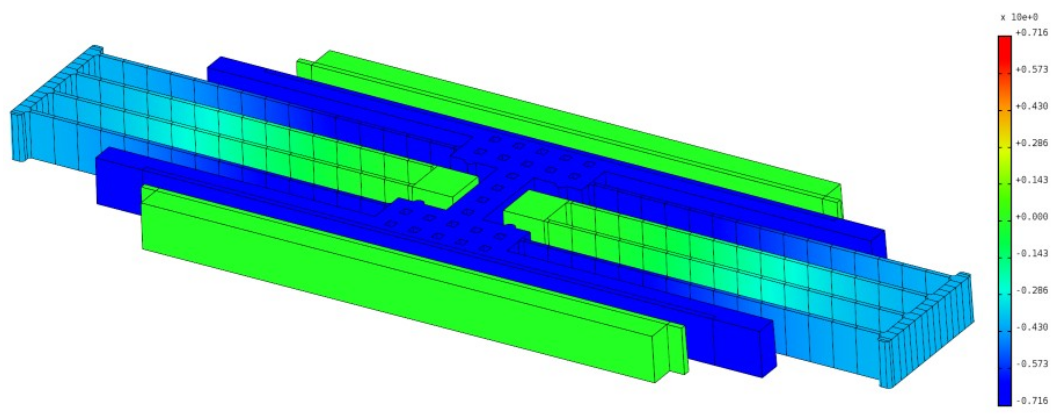
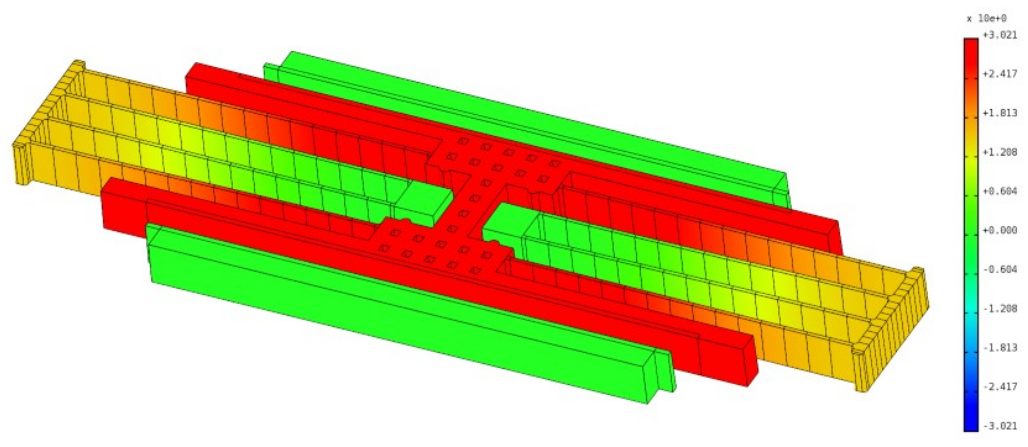
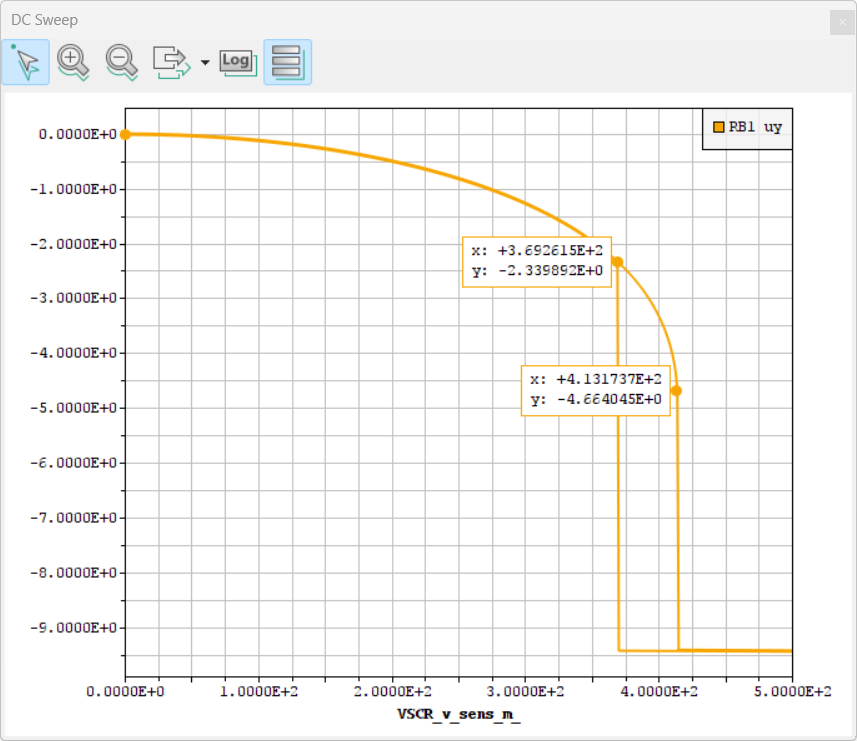
The next two examples of Table 5 show simulation commands and result plots for acceleration and voltage loads. Both loads are much higher than usual because of the enlarged spring width and electrode gaps of the model. Voltage loads generate deflection dependent electrostatic forces which are solved iteratively. In the current example, the travel range of combcells in closing gap directions is limited to 80 % of the electrode gap measured at the center of the overlapping area. The minimal remaining gap as well as the contact stiffness can be changed in the Simulation Settings window of the GUI. Furthermore, the travel range is limited by stopper elements.
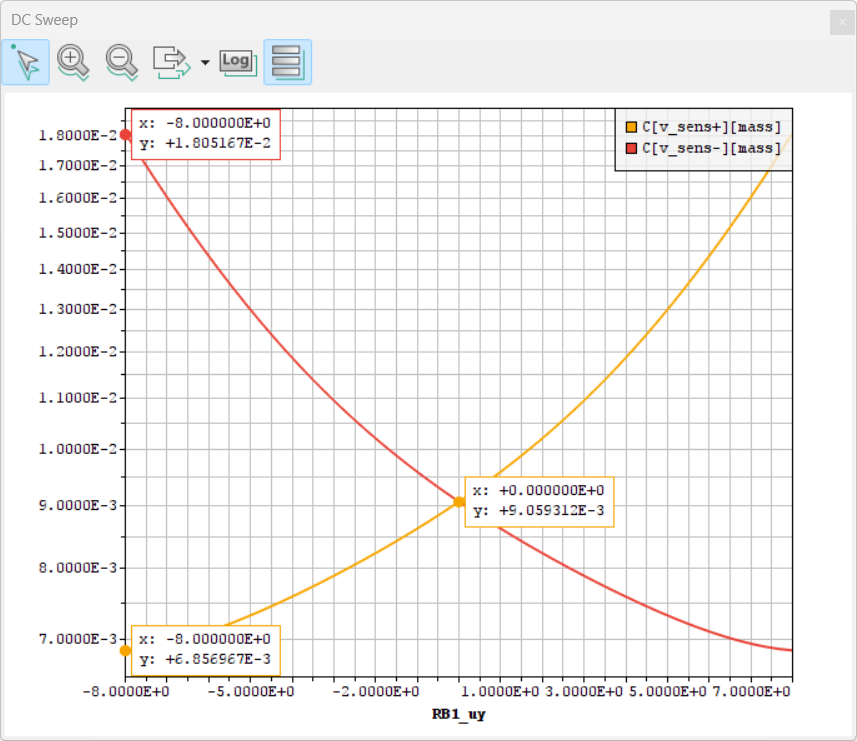
Commands of example four of Table 5 demonstrate how capacitance-stroke-functions can be calculated by DCSW commands. All comb and plate capacitances to be considered must be linked to voltage ports by the COND command. All other capacitances are ignored which speeds up simulation runs, especially for transient simulations.
In the given example, voltages are set to zero to avoid electrostatic forces. In practice, different local comb and plate capacitances can be merged to the same voltage ports and form a single global capacitance. Global capacitances are accessible for results evaluation by the SCON command or in the Graphical Users Interface using the features of the "Solution Item Selection" window.
The last example of Table 5 illustrates how voltage-displacement-functions can be simulated by DCSW commands. If the sweep range is set high enough, pull-in and release (pull-out) voltages can be determined for system evaluations. The pull-in voltage is a critical or upper bound of the voltage where the systems gets instable. The release voltage depends on the minimal remaining gap at the contact elements and is the lower voltage bound where the system returns into the stable operating range. Both curves show a hysteresis for capacitors with varying electrode gaps.
| Commands | Resulting Shape |
|
uy-displacement:
 uz-displacement:
|
|
uy-displacement:
|
|
uy-displacement:
|
|
|
|
|
Table 5. Static and DC-sweep simulation commands with obtained result plots.
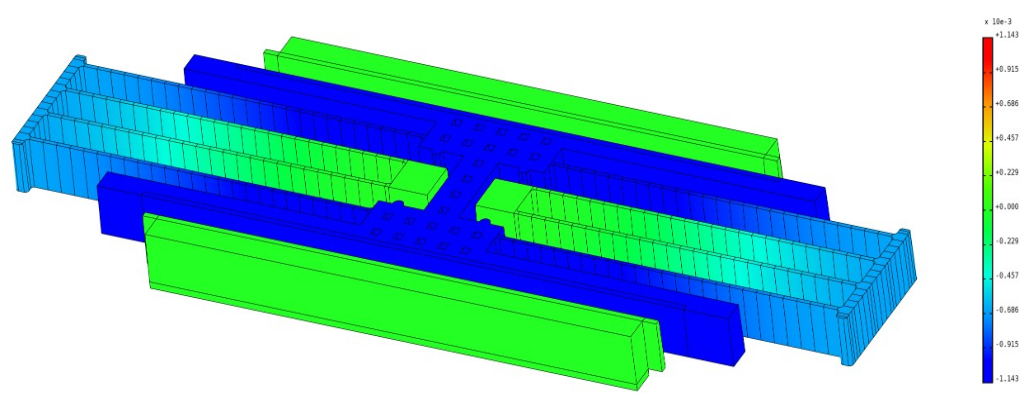
Coriolis forces caused by angular rates require mechanical components with non-zero velocities. This contradicts the application of static simulations to calculate the response caused by angular rates. However, static simulations are time and resource efficient.
The MODELBUILDER supports Coriolis forces by a combination of the DRIV and OMEG command. The first command selects an eigenvector from a modal analysis with a specific amplitude and frequency. Both values are necessary to calculate all velocity DOF for the mechanical domain. The second command applies angular rates and calculates the Coriolis force vector.
Finally, the SOLV, stat; command starts the simulation process for the quasi-static mechanical response. Resonant amplification due to quality factors can be considered by scaling result plots in the GUI. An example is shown in Table 6
|
|
Table 6. Quasi-static displacements due to Coriolis forces for given angular rates.
Harmonic response analysis (AC-sweep)⚓︎
"Harmonic simulations" are utilized to determine the steady-state response of a linearized system at sinusoidal loads. Results are amplitudes and phase angles or the real and imaginary parts of the output quantity in the specified frequency range.
The solver starts with calculating the operating point from specified DC-loads, linearizes the system equations and finally applies AC-loads in order to simulate the harmonic response. The terms DC- and AC-loads are adopted from electrical engineering and represent time independent und sinusoidal (harmonic) load components which are superimposed. Nonlinear solution schemas are applied for DC-loads in order to calculate the operating point, but the impact of AC-load components is linearized. This approach is known as small-signal case (SSC) in electronics.
Nonlinear effects should be simulated with care in a harmonic response analysis. For example, electrostatic forces are proportional to the square of the applied voltage. Linearization is only applicable if the AC-voltage is much smaller than the DC-voltage. Otherwise, second harmonics strongly contribute to the response but are ignored by theory which leads to wrong results. Furthermore, capacitances of gap varying combs and plate-like capacitors are inverse proportional to displacements. A linearization is only applicable for displacement amplitudes which are small compared to the electrode gap.
For the mechanical domain, DC- and AC-loads or constraints are defined by LOAD, ACEL, OMEG and for the electrical domain by VSCR and ISCR commands. The frequency range, number of datapoints and linear or logarithmic frequency spacing are defined by the HARF command. Finally damping must be defined for the mechanical domain to avoid singularities at resonances as shown later.
The solution-process is started by the SOLV, harm; command. After simulations have been finished a post-processing panel "Harmonic" appears on the screen.
The "Bode Plot" window provides access to amplitude- and phase-frequency-response curves. The response curves can be plotted with linear or logarithmic axes scaling or the obtained data are listed in several output formats. Result items are either selected graphically in the "Solution Item Selection" window of the GUI or by SNOD and SCON commands in batch mode.
In the MODELBUILDER, damping can be defined in three different ways:
-
Alpha-beta-damping (Rayleigh damping): The general idea of the Rayleigh approach is to superimpose a damping matrix from a weighted combination of the mass and stiffness matrix whereby the mass matrix is scaled by "alpha" and the stiffness matrix by a "beta" multiplier. It can be shown that the "beta" multiplier linearly increases damping regarding frequencies and the "alpha" multiplier decreases damping inverse proportional. For MEMS design, the "alpha" and "beta" multipliers are often adjusted in such a way that the damping ratios of two characteristic frequencies (eigenmodes) are captured precisely (e.g. drive and sense modes of angular rate sensors). Rayleigh damping can be assigned by the RDMP command and is applicable for harmonic and transient simulations. Drawbacks of the Rayleigh approach are that the damping ratios can only be controlled for two frequencies (two eigenmodes) and negative multipliers might occur. Negative multipliers can cause negative damping ratios for high order modes. For this reason, the obtained damping ratio over frequency response calculated from RDMP settings should be visualized by the DPLO command before simulations are performed.
-
Constant damping ratio: The CDMP command can be used to set a constant damping ratio for the whole frequency range of the harmonic response analysis. However, the approach is not applicable for transient simulations. Assigning a constant damping ratio is a simple and widely used approach and represents the amplitudes well for low frequencies (quasi-static cases) and close to the eigenfrequencies of all modes. Drawback is that the amplitude response between eigenfrequencies is approximated and deviations occur for moderate and high damping ratios.
-
Modal damping ratio: The MDMP command assigns damping ratios to the eigenmodes of the system referred to as modal damping. It is a very powerful approach because individual damping ratios can be assigned to modes and the dynamic response is represented with high accuracy. Modal damping is applicable for both, harmonic response analyses and transient simulations if the modal superposition solver is activated (see MSUP command). Modal damping is widely used for MEMS design. Appropriate damping ratios for modes can be obtained from fluidflow simulations, from analytical assessments or simply from measurements on similar structures.
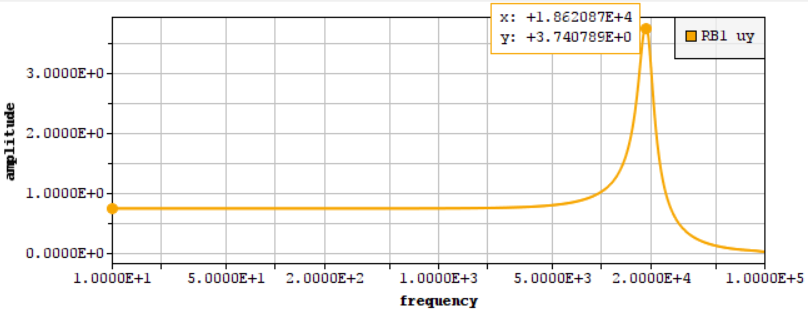
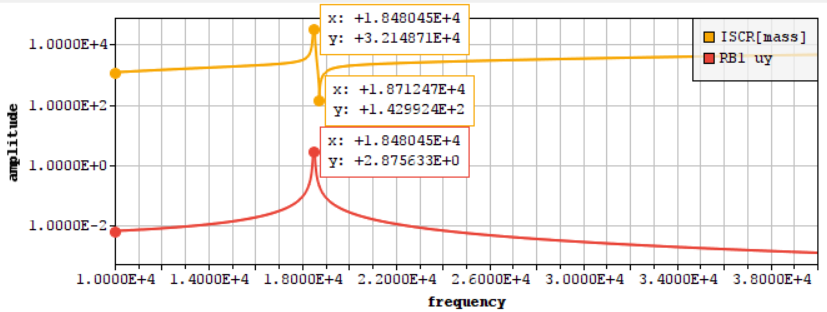
Table 7 shows examples of harmonic response analyses. In the first case, an acceleration load with a DC- and an AC-component of 9819 m/s2 is applied for demonstration (see ACEL command). The DC-acceleration shifts the seismic mass -0.719 µm in uy-direction. Hence, capacitances and the capacitance derivatives of the upper and lower comb become different values at the operating point.
The motion amplitudes at low frequencies are equal to the static displacements. A damping ratio of 0.1 leads to about five times larger amplitudes at the eigenfrequency. Note, exactly five times larger values occur only for single-DOF systems where the reduction level has been set to one (see REDS command). For multi-DOF systems, the displacements or the mode shape at the eigenfrequency are not simply scaled static displacement states. For this reason, harmonic response analyses are vital to capture the performance of complex systems even if they operate at resonance.
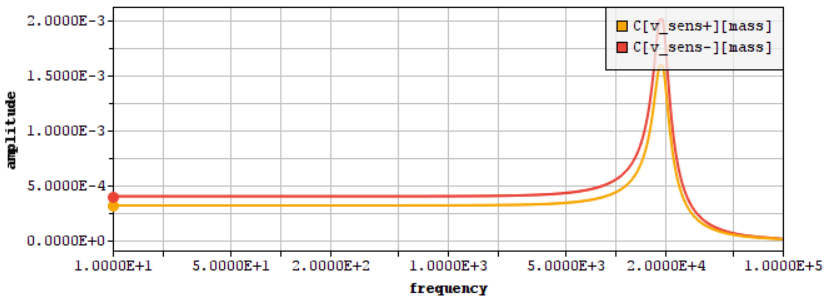
The capacitance responses of the SCON commands in Table 7 show capacitance amplitudes. Total capacitances consist of the DC-capacitances at the operating point which are calculated in static simulations and the sinusoidal capacitance change calculated in the harmonic response analysis. Capacitance amplitudes depend on the capacitance derivatives at the operating point and motion amplitudes. The electrical current depends furthermore on comb or plate velocities and the applied voltages.
Take care to erase loads and constraints from previous examples. Erase commands will not be shown in following input files. Click "Assign Loads", select "summary", click on "Delete table" to erase all existing loads and constraints.
| Commands | Resulting Shape |
|
|
|
|
|
|
Table 7. Harmonic response analysis for applied acceleration and voltage loads.
The second example of Table 7 shows the admittance of the transducer. A DC-voltage has been set at the fixed combs and an AC-voltage of much lower amplitude is applied at the moving mass. The current flow (admittance) shows a resonance at the tuned eigenfrequency (electrostatic softening) and an anti-resonance at the original mechanical eigenfrequency. This effect is widely used for experimental characterization of MEMS to quantify the electrostatic softening effect.
Transient simulations⚓︎
"Transient simulations" determine the model response in the time domain. The solution process is based on a Newmark time integration method with internal Newton-Raphson equilibrium iterations to account for non-linear effects related with electro-mechanical interactions. The TIME command specifies two essential parameters, the total simulation time and the time-step size for the numerical time integration (time increment). A proper time-step size should be chosen carefully. Small steps are time consuming and large steps lead to inaccurate results or even instabilities.
The time-step size depends on the highest frequency which significantly contributes to the response for given load situations. Vibration frequencies of accelerometers or the drive and sense frequencies of angular rate sensors clearly contribute most. Thinking in terms of a modal superposition or a Fourier decomposition, several high order modes might be relevant too. In general, the highest frequency of interest should be resolved by at least 50 steps per cycle. Systems with low damping (high quality factors) need smaller time-steps for accurate results. A quality factor of 1000 needs nearly 150 steps as shown for the Micro mirror actuator example.
The MODELBUILDER switches from a fixed time-step size defined by the TIME command to an automatic time stepping algorithm if contact elements tend to close. If a contact gap is smaller than 20 % of the initial gap, the time intervals are gradually reduced. At the moment of impact, small time steps are necessary for accurate results since contact elements strongly increases the response frequency of the system.
The contact behavior can be controlled by two parameters, the contact stiffness and the contact damping factor defined in the Simulation Settings window. Appropriate values should be assigned from the following considerations:
-
Contact Normal Stiffness: Too large contact stiffness values lead to very small time-steps and the solver could fail to converge. Too small contact stiffness values lead to a large penetration depth and conductors of comb or plate capacitors might touch each other. The contact stiffness should be calculated from the expected impact forces at the contact divided by the accepted penetration depth. When difficulties arise, proper contact stiffness data can also be estimated in static simulations which are faster to run for testing. In transient simulations, the contact stiffness leads to an elastic impact and bouncing effects might occur. Therefore, a damping element is required to control the velocity ratio before the impact and after the contact release.
-
Contact Normal Damping: Contact damping reduces the kinetic energy so bouncing can be lowered or even eliminated. In the latter case, the movable mass rests at the contact until external forces are smaller than restoring forces of suspension springs. The contact damping factor is not simply a fixed coefficient of a damper element since damping forces of the contact would jump strongly at the moment of impact. To avoid numerical problems, the implemented contact model leads to a smooth increase of damping forces depending on the velocity of the contact element, the penetration depth and the assigned "Contact damping factor". If difficulties arise to predict a proper damping value, one should start with a very small or zero damping factor and increase the value until the expected behavior occurs.
Transient loads can be defined by LOAD, ACEL, OMEG, VSCR and ISCR commands. In practice, a few characteristic load-time-functions are required for transient simulations as known from electronic design automation. The commands above support "sine", "step", "pulse" and "ramp" functions. Arbitrary user defined functions can be defined in the MATLAB/SIMULINK environment (see Interface to SIMULINK®).
Multiple loads which are applied at different degrees of freedom can be superimposed. The solution process is started by SOLV, trans; and a post-processing panel "Transient" appears on the screen.
The transient response can be visualized and animated in the post-processing window by the "3D View" panels. Displacement and contour plots are available for each time-step. Furthermore, "Bode Plots" are utilized to plot time dependent result curves which can be chosen graphically in the "Solution Item Selection" window which appears after each simulation run.
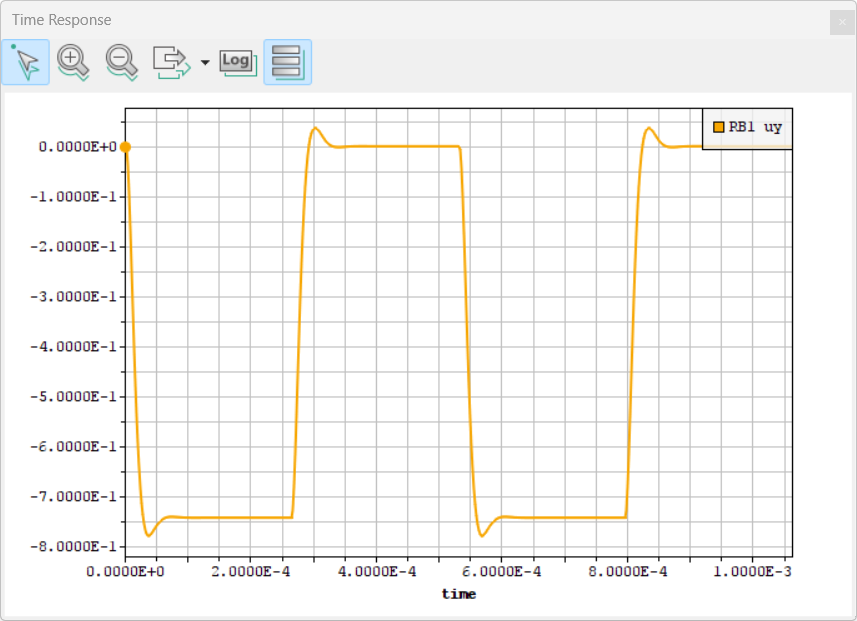
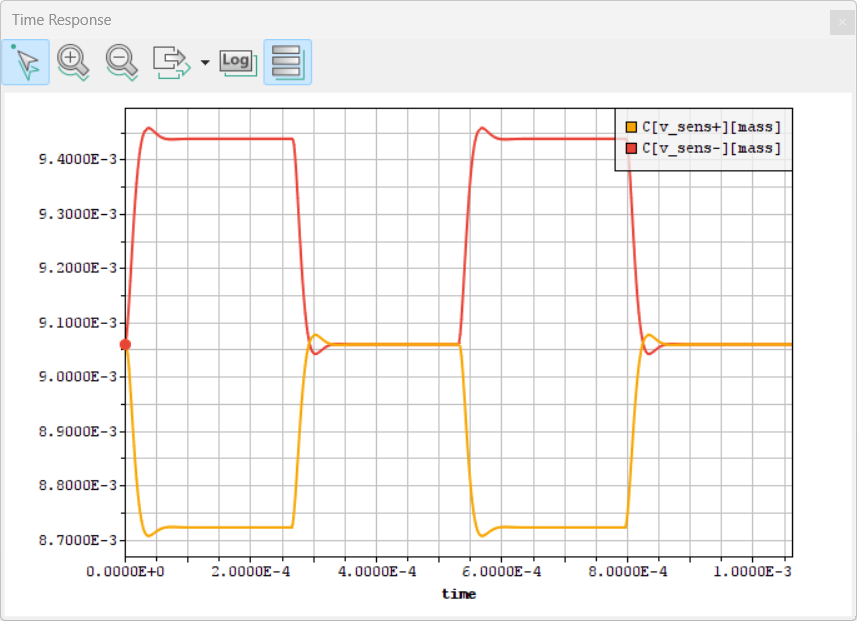
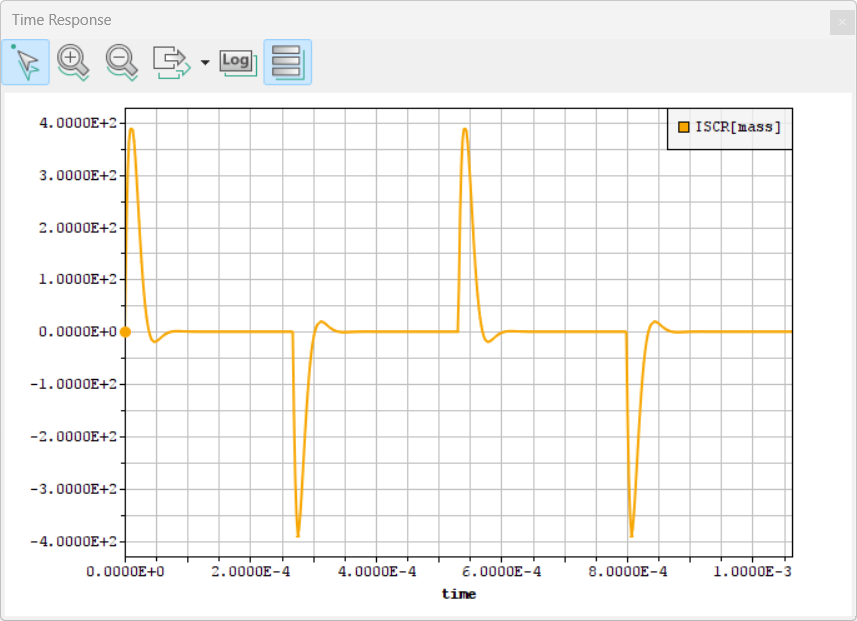
In Table 8 the transient response of an accelerometer to an acceleration pulse is simulated for demonstration. The total simulation time is 20 periods (inverse of eigenfrequency) and 100 time-steps are set for each period. The acceleration pulse is 1000*9.819 m/s2 (1000g) with a signal period of 10 cycles and 50 % pulse width. Optimal damping (dmpr=0.707) is assigned by the Rayleigh approach.
|
uy-displacement:
|
Comb capacitance:
|
Current at mass port:
|
Table 8. Transient response of the accelerometer to an acceleration pulse.
The uy-displacement plot shows a short transient overshoot as known from theory. The quasi-static state at the high-pulse corresponds to results from static simulations. Below are the capacitance-time-functions for the upper and lower comb and the current response at the mass port. In this example, the electrical current depends solely on capacitance changes caused by the moving mass since applied voltages are constant. 2000 time-steps take about 5 seconds on a PC.
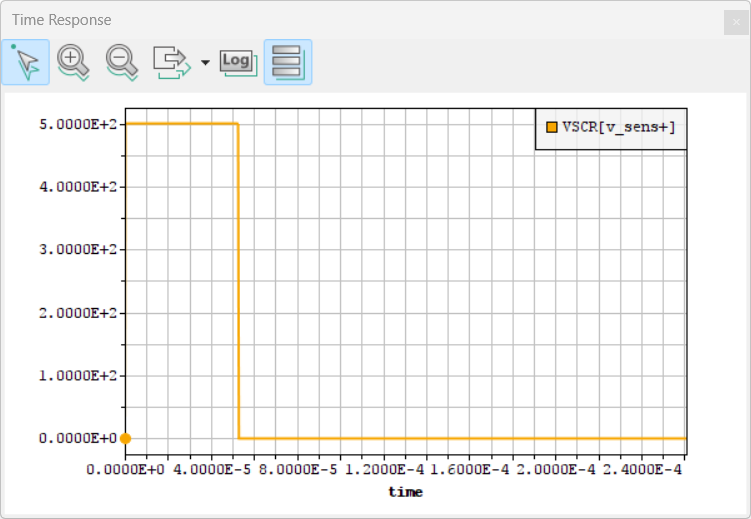
Table 9 shows another example where a voltage pulse is applied at the upper combcell. The voltage pulse is set to a value which is larger as the pull-in voltage calculated by the DCSW command.
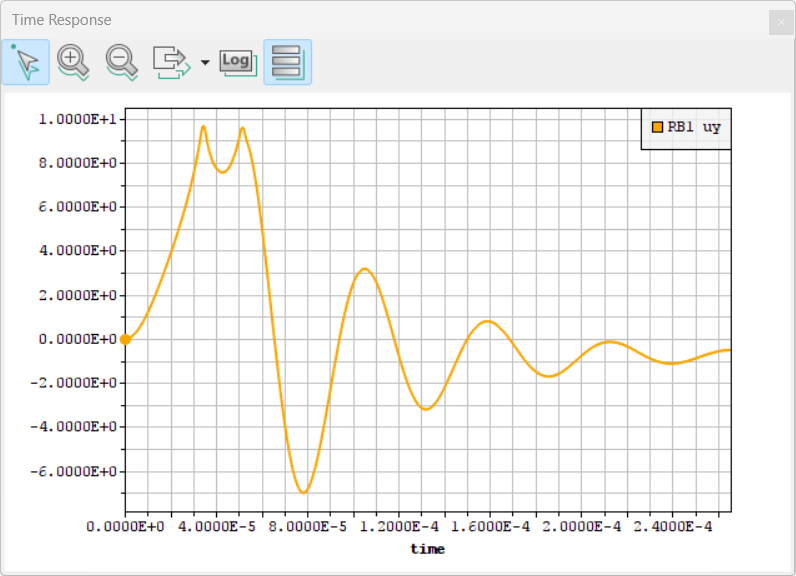
Consequently, contact elements at the stoppers limit the travel range to about 10 µm. In this model, the damping ratio is reduced to 0.15 in order to show the ringdown oscillations after contact release.
|
Voltage-Pulse-Function:
|
uy-displacement with bouncing:
|
current response with bouncing:
|
uy-displacement with high contact damping:
|
current response with high contact damping:
|
Table 9. Transient response to a voltage pulse with low and high contact damping.
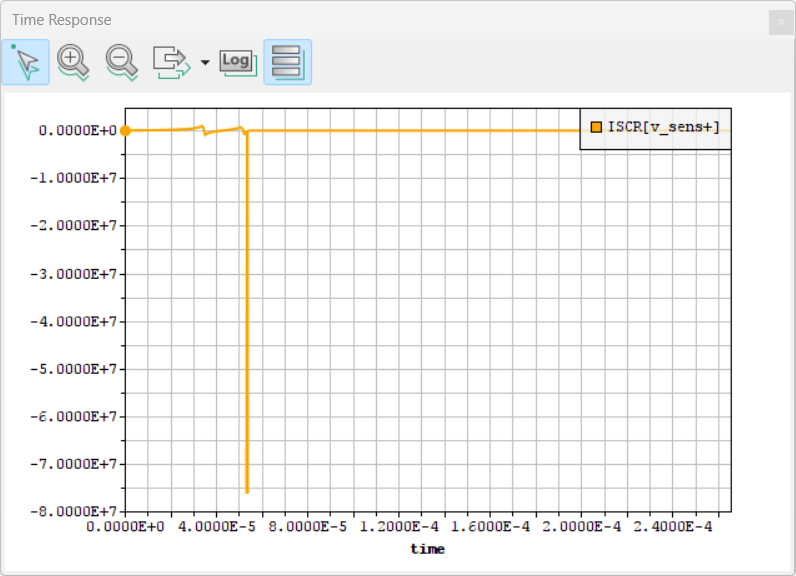
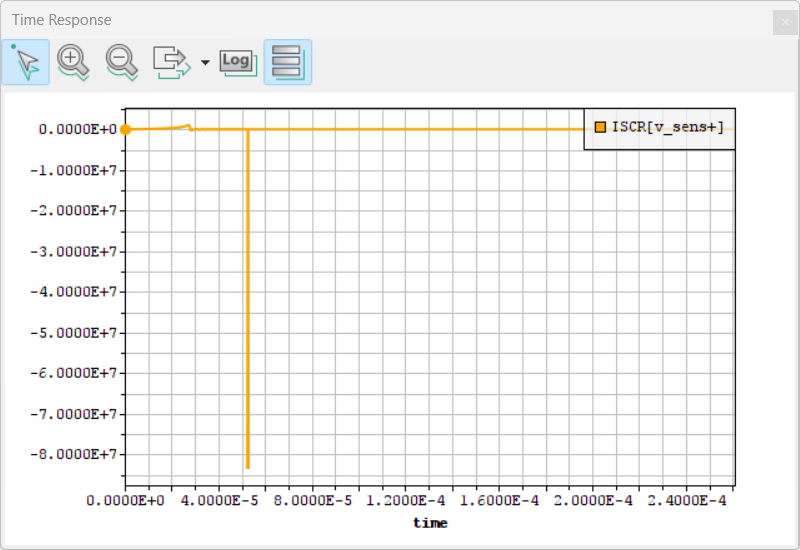
In the following, the influence of contact damping will be shown for demonstration. In the first case (second line of Table 9), a low "contact damping factor" with a zero value was applied for the transient simulation. As expected, strong bouncing can be observed in uy-direction. In the right plot, the electrical current at the voltage port is added to the displacement plot for comparison. The electrical current depends on the velocity of the seismic mass. At the moment of impact, bouncing creates almost ideal velocity jumps which are reproduced in the current response. Two strong peaks in the current response are originated from the sudden rise and fall of the voltage signal in the time domain.
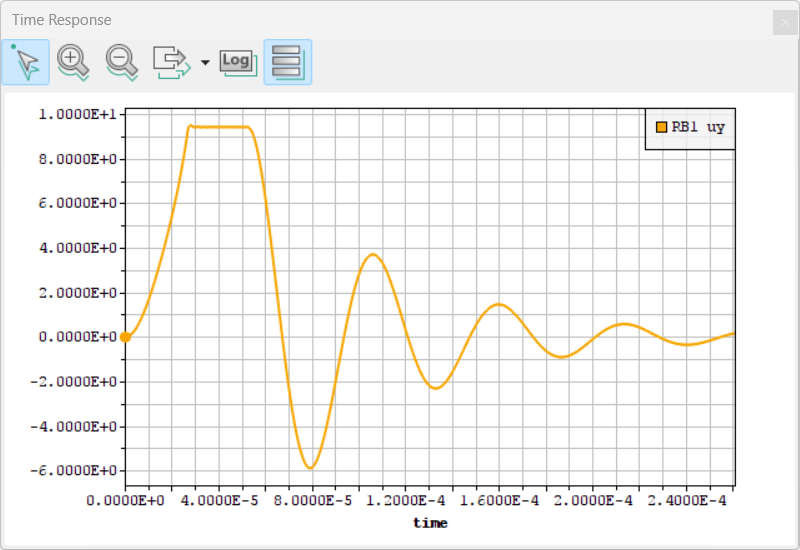
The third line shows the transient response of the same model at a high "contact damping factor" with a value of 1.0. Bouncing is strongly reduced, and oscillations of the displacement and current functions disappear. At the moment of impact, one can see a small penetration of the moving part into the contact target. The value can be controlled by the contact stiffness. More advanced contact models with specific features (e.g. adhesion) can be added in the MATLAB/SIMULINK environment (see Interface to SIMULINK®).
Interface to ANSYS®⚓︎
For a consistent design flow, it is necessary to create finite-element models automatically. The MODELBUILDER provides an Interface to ANSYS® where MEMS models with given dimensional parameters and process data can be transferred to ANSYS® for highly accurate FE-simulations. The interface is an additional feature of the MODELBUILDER and requires a special license.
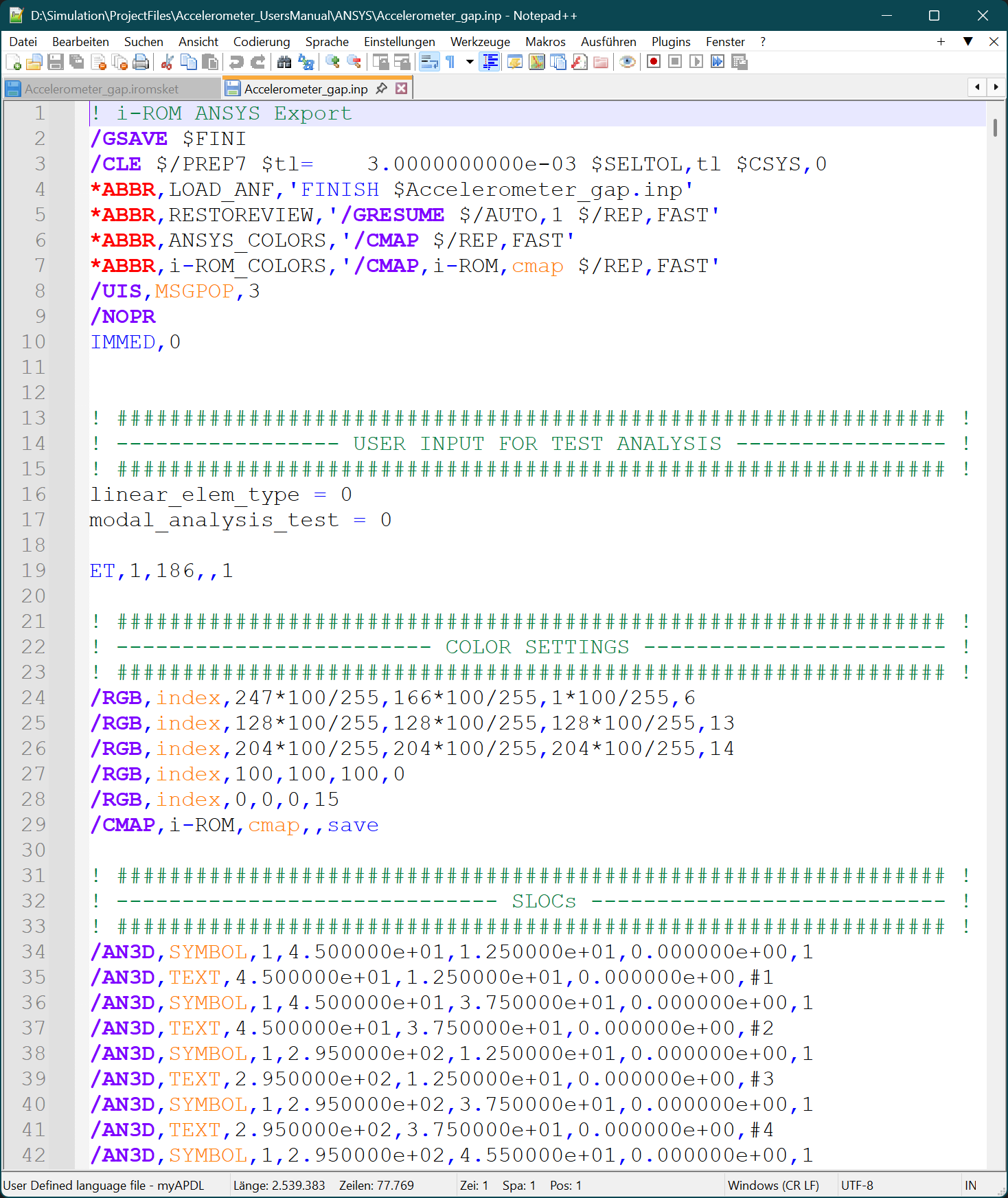
The Interface to ANSYS® transfers the current MEMS layout to ANSYS® by APDL commands (APDL - Ansys Parametric Design Language). For solid modeling, either a "bottom-up" or a "top-down" approach can be utilized (see ANSYS Users Guide) whereby the first approach is implemented in the MODELBUILDER software.
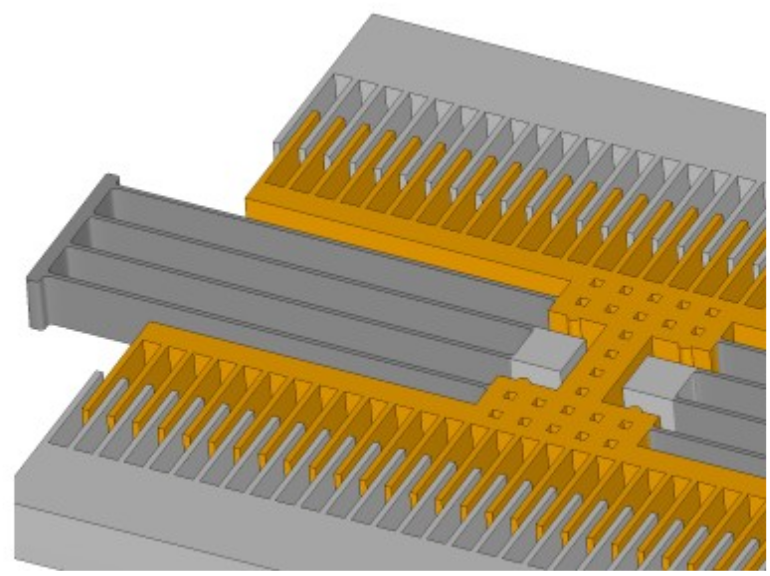
The "bottom up" approach starts from the lowest hierarchical order of solid model entities. 3D-models are generated from vertices which are referred to as key-points, followed by lines, surfaces and volumes, to ultimately create a 3D-representation of the entire MEMS device. Individual solid model entities as rigid bodies, anchors, springs and combs can be selected by component names or reference numbers.
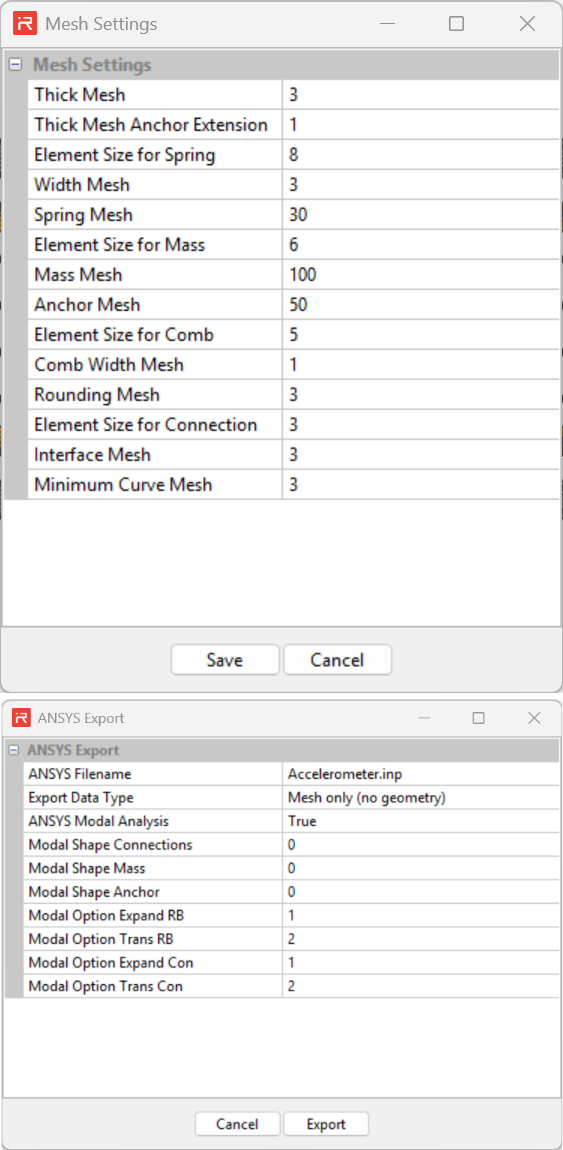
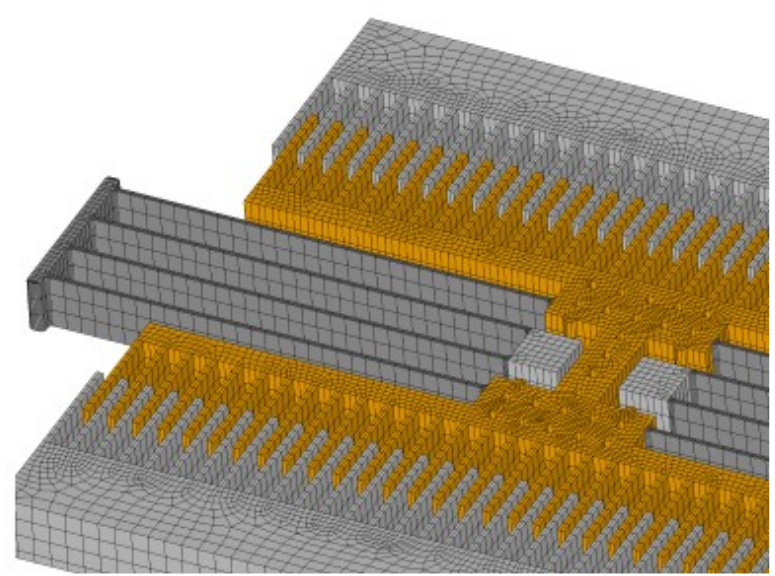
Next step is the finite-element mesh generation process. The APDL-model export file contains all information about the finite-element mesh density and required meshing operations which are performed in ANSYS®. Mesh density parameters can be set or modified in the Mesh Settings window of the Graphical User Interface as shown in Table 10.
The APDL-model export file is generated by clicking on the "ANSYS Export" icon of the Graphical User Interface. At the end of the APDL-file are commands to run a finite-element modal analysis for demonstration.
ANSYS mesh settings in the MODELBUILDER:
|
ANSYS-APDL model file:
|
ANSYS solid model:
|
ANSYS finite-element mesh:
|
Table 10. Finite-element model export to ANSYS based on APDL-commands.
Interface to COMSOL®⚓︎
The MODELBUILDER also provides an Interface to the Finite Element Program COMSOL®. It requires a special license. The Interface to COMSOL® supports the export of all solid model features including corner fillets, mask undercut and etch sidewall slope settings for subsequent finite elements simulations. Other optional features are:
- Activate Selection: Solid models are grouped into multiple components such as anchor bodies, springs, comb conductors or mass bodies. These selections are useful for assigning physics simulation data. Other selections apply to interface lines of springs, combs, perforations and fillets and are required for mesh settings and mesh creation routines.
- Activate Material: Assigns material properties to solid model components.
- Activate Mesh: Applies mesh settings to solid model components. The meshing process must be started manually in COMSOL as shown in the following steps.
- Activate Physics: Applies physics simulation settings (e.g. fixed constraints on anchor bodies). Additional settings based on preselected components can be assigned manually in COMSOL.
- Activate Study: Assigns simulation settings for a modal analysis. The simulation routine must be started manually in COMSOL.

Figure 11. i-ROM Modelbuilder Export Settings for COMSOL
The left part of Figure 11 above shows suitable mesh settings for the accelerometer example (see Mesh Settings window). Some mesh settings are not applicable in COMSOL such as maximum mesh divisions for mass bodies, anchors or connecting volumes. For these model components, COMSOL applies default settings (fine, normal, coarse) that can be modified in the COMSOL user interface. Spring width and corner fillet mesh divisions should be an even number to achieve better mesh quality with symmetric meshes.
COMSOL applies Boolean operations to connect areas to volumes (Convert to Solid) and to connect volumes to a solid model (Form union). A so-called repair tolerance must be applied to avoid gaps at the interfaces between geometrical objects caused by numerical tolerances.
Absolute or relative repair tolerances can be assigned for both types of Boolean operations. Tolerance settings can also be changed in the COMSOL user interface.
The COMSOL files appear in a "Comsol" folder inside the MODELBUILDER project folder. The files can be copied to another folder on the same or another computer for subsequent finite element simulations. However, COMSOL needs to be installed on the computer to create a compiled "*.class" file. Otherwise a warning appears.
Alternatively, "*.class" files can also be created on other computers using the "ComsolConvert.bat" file located in the generated Comsol folder. Run "ConvertComsol.bat" to create a "*.class" file for the COMSOL Application builder. Please note that the Application Builder requires the JAVA Programming Language to be installed on the computer. See the "COMSOL Multiphysics Programming Reference Manual" for details.
Start COMSOL and open "accelerometer_comsol.class".

Figure 12. In COMSOL open the class-file.
A COMSOL solid model appears in the Graphics window. Click on "Mesh 1" in the model tree and then on "Build All" to start the meshing process.

Figure 13. Creating the mesh within COMSOL.
A finite element model appears on the screen. Click on "Study 1" in the model tree and then on "Compute" to start a modal analysis.

Figure 14. In COMSOL start the computation.
The results of the modal analysis are plotted on the screen. The first twelve modes are calculated according to the "Study 1" settings. The finite element model can be saved as COMSOL application "*.mph" file. Application files open faster but take up much more disk space than "*.class" files.

Figure 15. View the results.
Appropriate mesh settings are usually model specific. Mesh settings can be easily changed in the COMSOL model tree. Click on "Mesh 1" and open the mesh settings and generation sequence assigned by the MODELBUILDER export interface. Click "SpringMeshDis_Width". A settings menu appears that visualizes the assigned number of elements for the spring width. The value can be changed and will take effect after clicking on "Build all".

Figure 16. Conbarmesh settings in COMSOL.
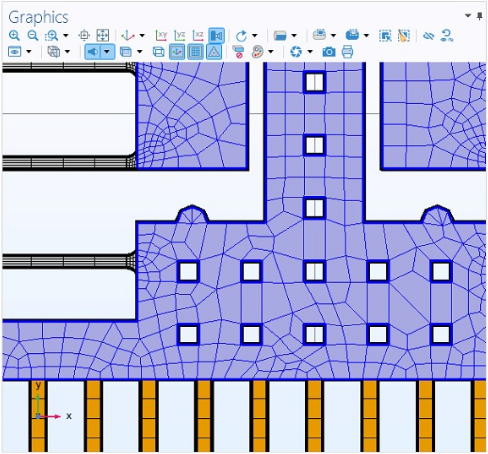
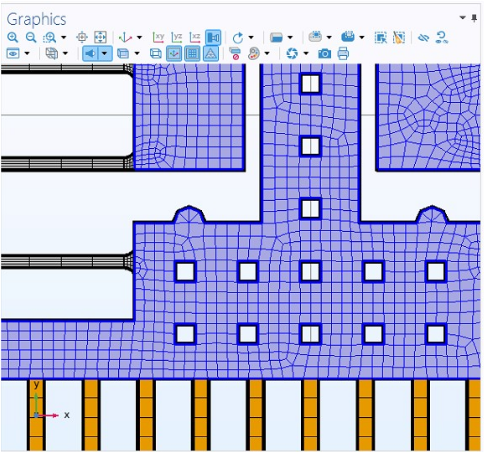
For demonstration, the element size of mass bodies and anchors should be changed from 6 to 3 in the "MassBodyMeshSize" settings sequence.

Figure 17. Setting element size
Maximum element size: 6
|
Maximum element size: 3
|
Table 11. Varring element size within COMSOL.
The assigned relative repair tolerance of 1e-5 can also be changed in the solid model settings menu "Form union".

Figure 18. Setting repair tolerance to "Form Union"
Interface to SIMULINK®⚓︎
The i-ROM MODELBUILDER provides an optional Interface to SIMULINK® for advanced system simulations. The interface is an additional feature of the MODELBUILDER and requires a special license.
SIMULINK models are based on a signal-flow graph and allow for transient simulations. Signal-flow graphs are characterized by a unidirectional signal flow between library elements referred to as "blocks". The exported MEMS model is a "sub-system" with "inputs" and "outputs". The subsystem block contains a group of SIMULINK library elements which are connected by signal lines.
At least, MEMS models consist of a mechanical domain described by a force-displacement-relationship and an electrical domain characterized by a voltage-current-relationship. For signal-flow models, each domain must be decomposed whereby one quantity becomes "input" and the other one "output". Most practical is to assign forces and voltages to "input" signals and displacements and currents to "output" signals.
Input quantities of the signal-flow model in SIMULINK are:
- Forces and moments on Master nodes (MN), spring connecting points (SL) and rigid body center points (RB) defined by the LOAD command.
- Linear and rotational acceleration loads defined by the ACEL command.
- Angular rates (velocities) around coordinate axes defined by the OMEG command. Angular rates are utilized for Coriolis forces and moments.
- Voltage loads at conductor ports defined by the VSCR command.
Input quantities and simulation settings (REDS, MSUP, TIME) from the last transient simulation performed in the MODELBUILDER are automatically transferred to the SIMULINK model by clicking on the "Simulink Export" icon of the Graphical User Interface. Alternatively, the SIML command can be utilized in a batch mode to create a SIMULINK model of the current design.
In general, all output quantities such as displacements at rigid bodies, master nodes and spring connecting points in the mechanical domain as well as capacitances and the electrical current in the electrostatic domain are available for results evaluation. Furthermore, the current settings for "Bode Plots" are additional "preselected" output quantities of the SCOPE-blocks for automated results monitoring in system simulations.
Exemplarily, a SIMULINK model with the same loads and simulation settings as listed in Table 8 is generated and analyzed for comparison. The curves in the right lower part of Figure 19 show the transient displacement response in uy-direction and the electrical current of the voltage port "v_sens+". SIMULINK results agree with results of the MODELBUILDER main program.
The Interface to SIMULINK® is a very important feature of the i-ROM MODELBUILDER. It supports a comprehensive scientific investigation of the current MEMS design because all internal model quantities are accessible for a detailed model evaluation.
Internal signals such as capacitance derivatives, different kinds of forces (spring forces, damping forces, inertial forces, Coriolis forces, contact forces, electrostatic forces), current components (motion induced current, current due to the voltage change) and other data provide essential information on the functional behavior and related physical effects of the model.
Internal parameters, load functions, SIMULINK blocks and the signal routing can be modified for case studies in order to verify the performance at different load situations and environmental conditions. In general, the exported SIMULINK models can be linked to other userdefined model components for controller and system design.

Figure 19. Transient response to a voltage pulse with low damping in SIMULINK.